Setup guide
Liney for HubSpot, from install to uninstall.
What Liney does
Liney is an app for HubSpot that sales reps use to log their work. You type one line about what happened, and Liney turns it into HubSpot updates:
- updates the deal it names: stage, amount, close date, next step and any other field you allow;
- updates contacts and companies the line mentions, adds a new contact or company HubSpot doesn't have yet, and links them: people to their company and to the deal, the deal to its company;
- adds a note, logs a call or a meeting that already happened, and adds a task when the line describes one (a meeting still ahead becomes a task to send the invite);
- marks one of your open tasks on the deal done when the line says you did it (“sent the pricing”), shown first so you can keep it open;
- fills what you said, and asks for any field your HubSpot admin requires that the line didn't give.
Nothing from a line reaches HubSpot until you press Update HubSpot, every change is made with your own HubSpot permissions, and you can undo a line for 30 days.
Before you start
- A HubSpot account with deals, and a HubSpot user who works them.
- The first install on a HubSpot account needs a Super Admin or someone with App Marketplace Access. After that, every rep connects with their own login, and a team admin approves new people (or turns approval off).
- No separate Liney account. Your HubSpot login is how you sign in.
Install and connect
You can start from the HubSpot Marketplace or from liney.ai. Both end in the same place.
From the HubSpot Marketplace
- In HubSpot, open the Marketplace, search for Liney and open its listing.
- Choose Install, review the permissions (listed below) and choose Connect app.
- Open www.liney.ai and choose Connect your CRM, then HubSpot. Approve on HubSpot's screen if it asks again; Liney then opens on your deals (see below if it doesn't).
From liney.ai
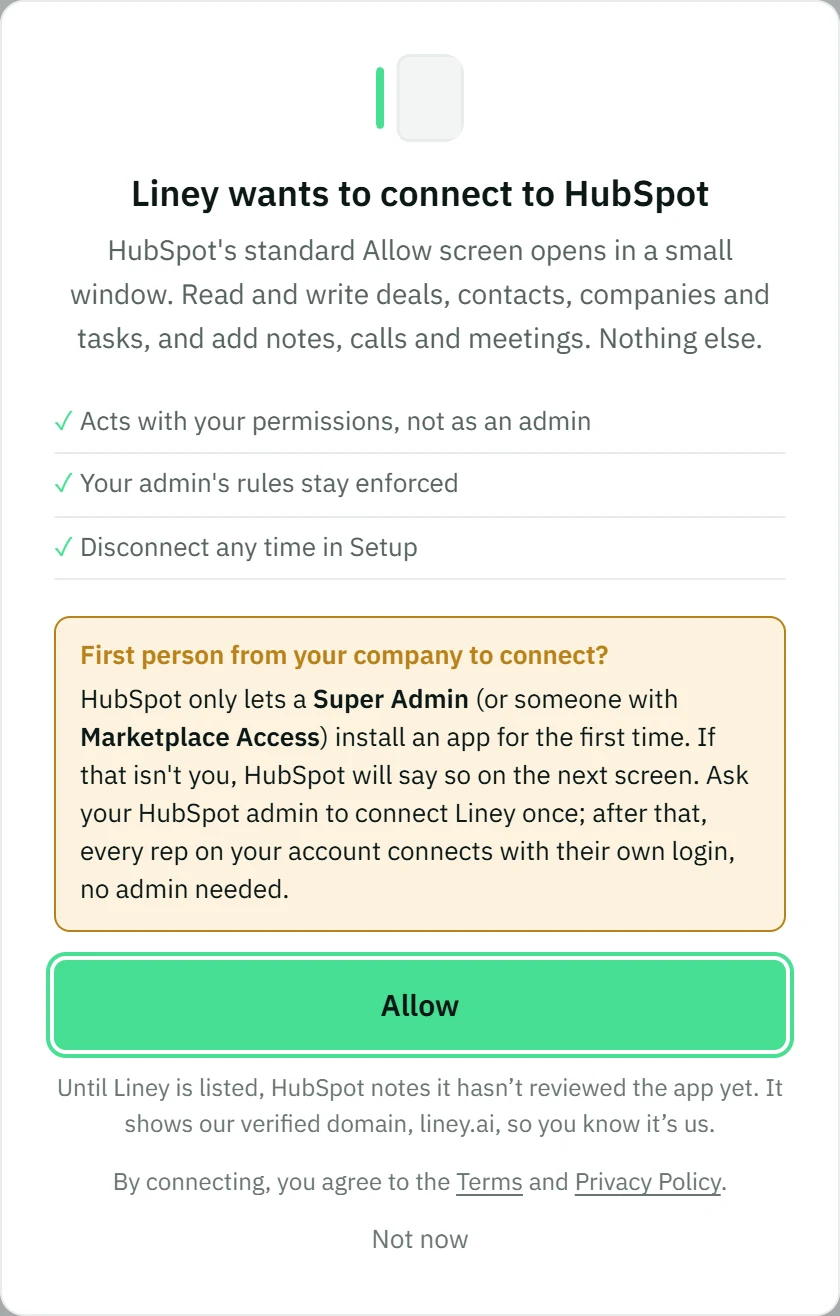
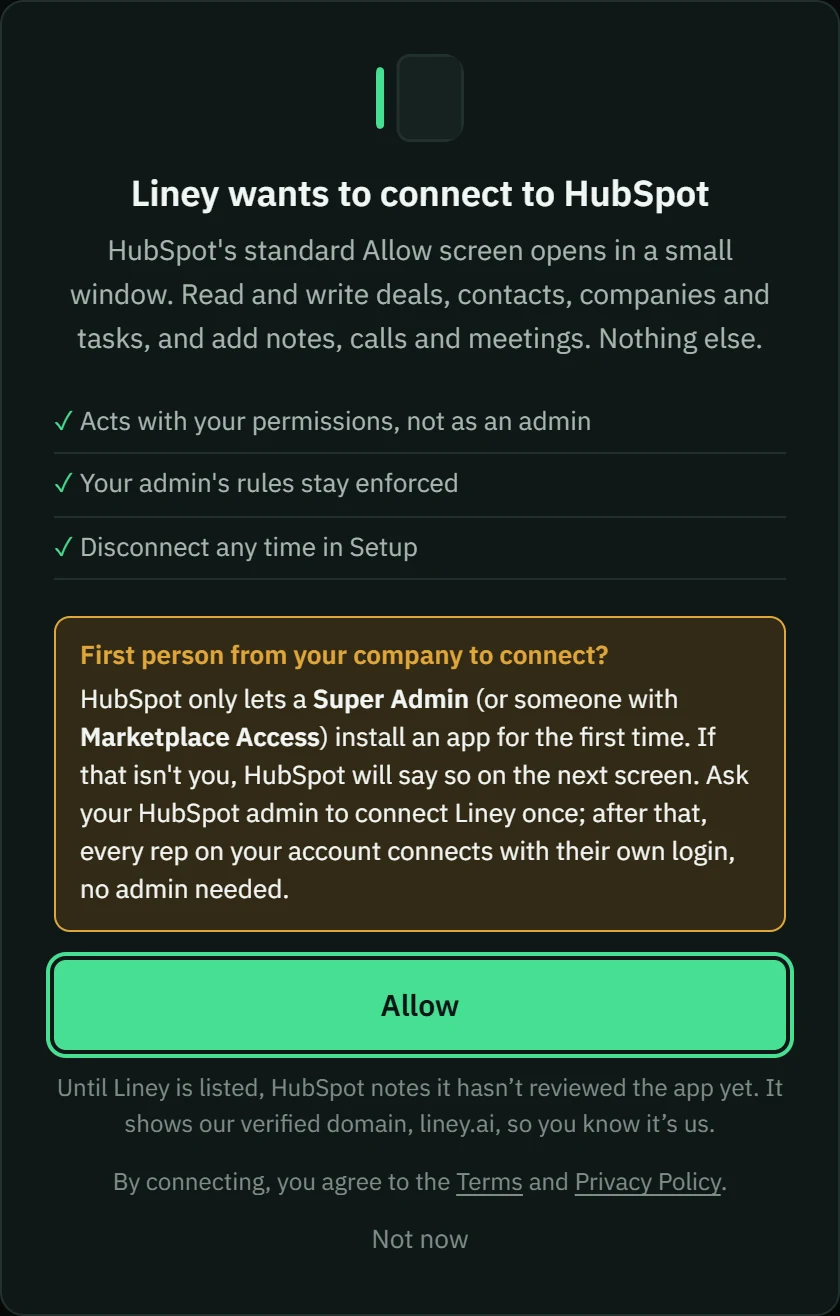
- Open www.liney.ai and choose Connect your CRM at the top right, then HubSpot. Liney shows what it will ask for.
- Choose Allow. HubSpot's own sign-in and permission screen opens.
- Sign in to HubSpot, pick the HubSpot account to connect if you have more than one, and choose Connect app.
- HubSpot sends you back to Liney, which loads your deals.
If Liney doesn't open on your deals
- Waiting for approval. The first person to connect on a HubSpot account, and HubSpot Super Admins, get straight in. Anyone else waits until a team admin approves them, unless a team admin has turned approval off or added their email. Approval is on by default.
- The beta is full. During the beta, Liney is open to a limited number of HubSpot accounts. If they're all taken, a new account is turned away when it connects and can join the waiting list. A teammate on an account that already uses Liney can still connect.
The permissions Liney asks for
HubSpot lists these on its permission screen. Liney requests only what it uses.
- Deals, contacts and companies: read and write. Liney reads your deals and the people and companies on them to match what you type, and writes the fields a line changes. It can create a deal or a contact when a line asks for one.
- Tasks: read and write. Liney shows follow-ups due today and creates tasks from a line.
- Notes, calls and meetings: read and write. Liney adds them to the record a line is about, and removes them if you undo (HubSpot needs the read permission for that).
- Owners and deal, contact and company properties: read. Liney learns who you are in HubSpot, which fields exist, and which ones your admin requires.
Liney is a user-level app: it acts as you, so it can only see and change what your HubSpot user can. HubSpot's required stage fields and your own HubSpot permissions apply to every write.
Configure
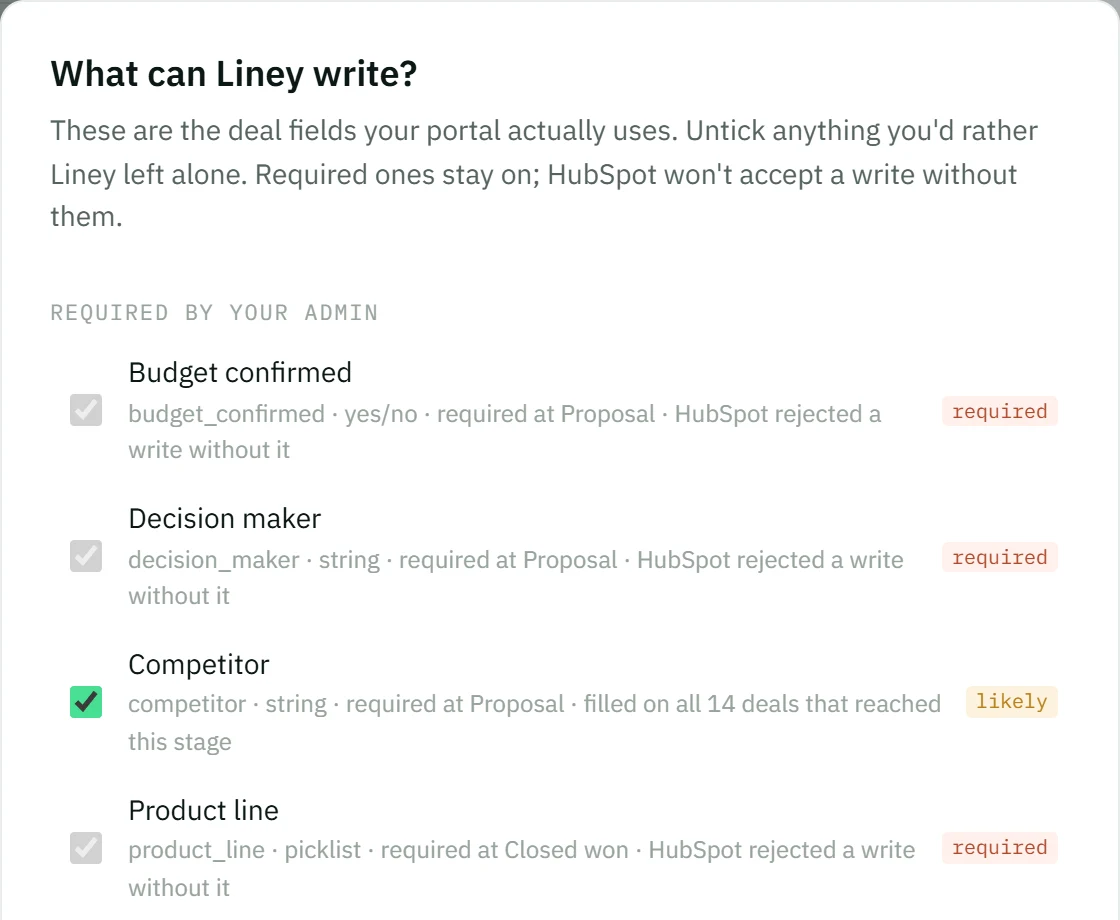
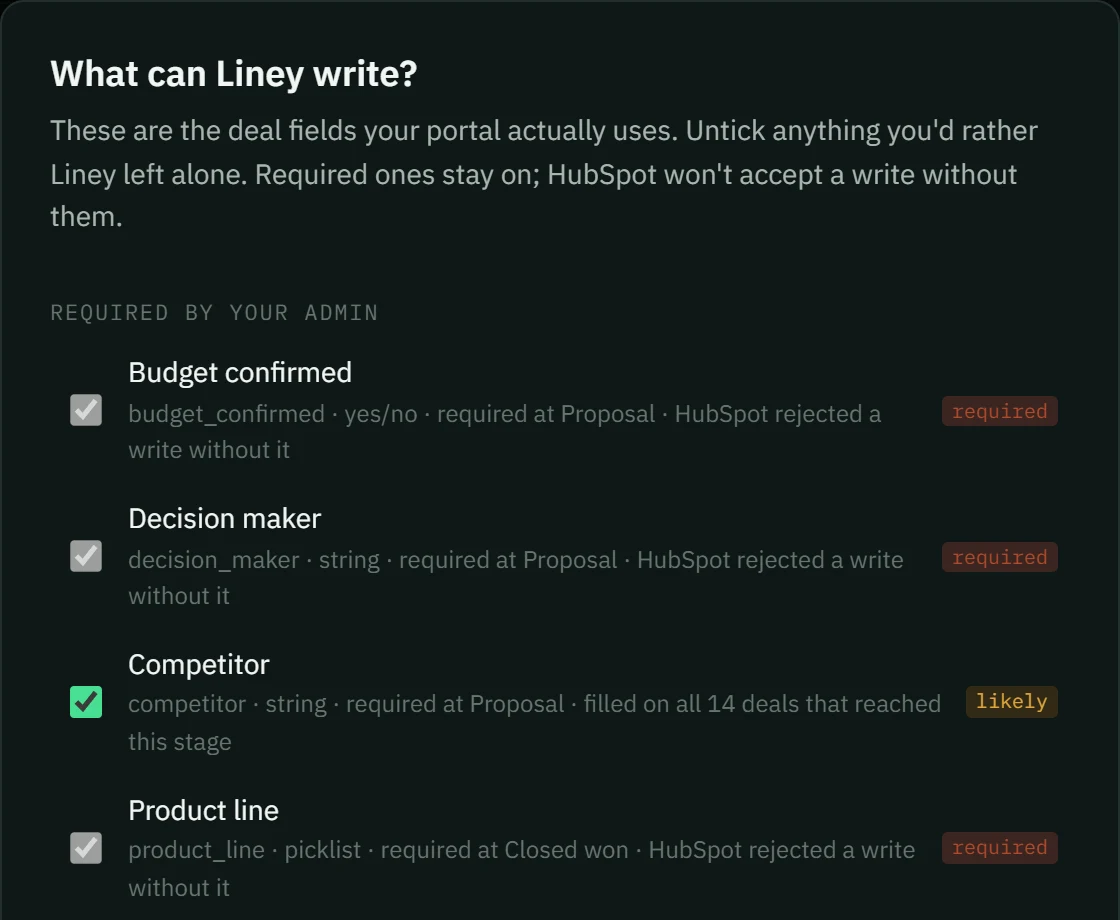
Fields. Right after the first team admin connects, Liney shows the fields your HubSpot account uses, with the ones on your deals already ticked. Untick anything Liney should leave alone; required fields stay on. That list is for everyone on the account, and admins change it later in Rules → Choose fields. Reps see the same list there, read-only.
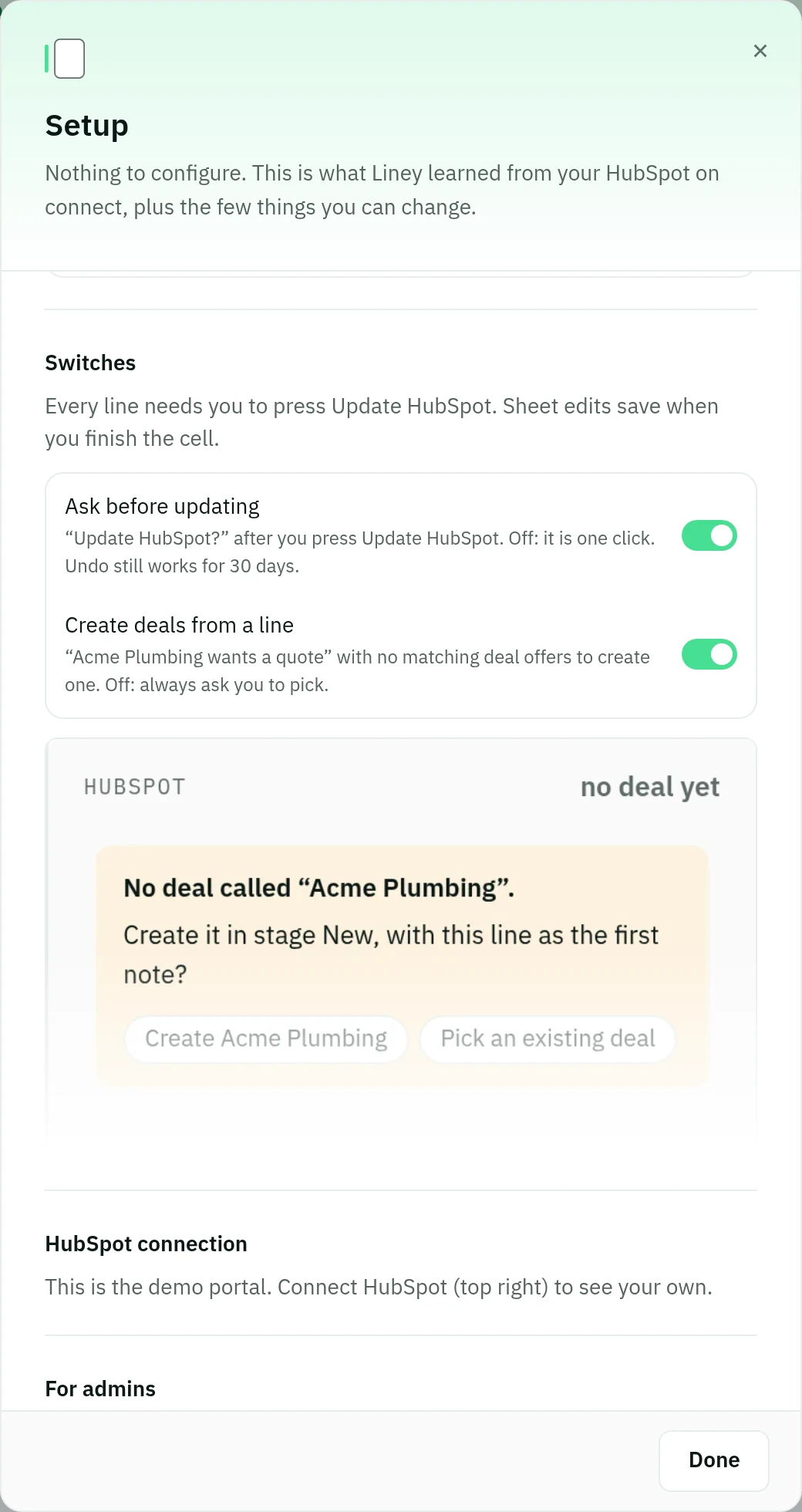
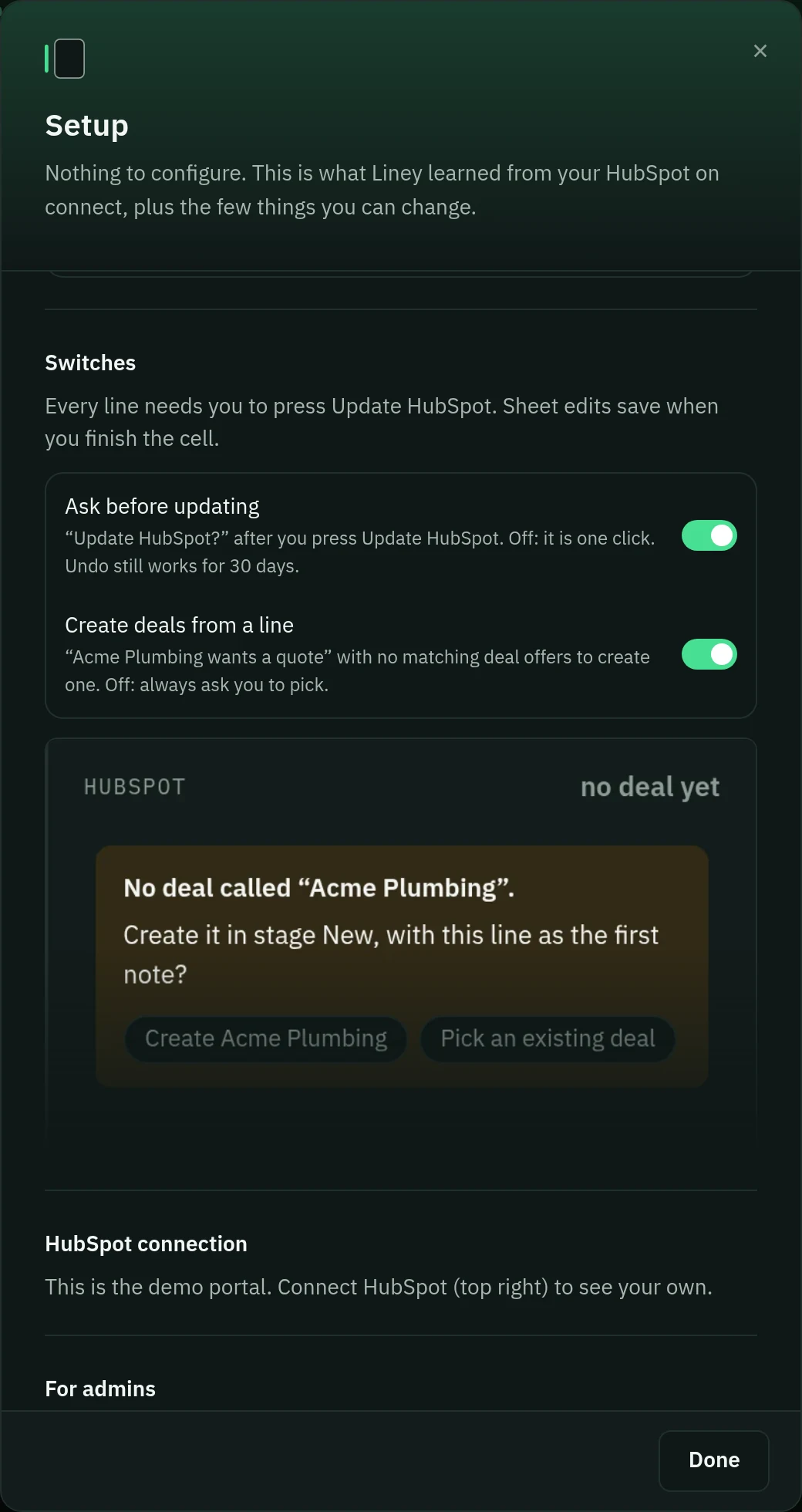
Switches. In Settings you can turn off Ask before updating (the extra “Update HubSpot?” check after you press Update HubSpot) and Create deals from a line. You always press Update HubSpot yourself; no setting skips that.
Pipeline. If your deals live in more than one pipeline, pick the one you work in under Settings → My pipeline.
Your team (admins). The first person to connect on a HubSpot account is a team admin, and so is any HubSpot Super Admin. Approval is on by default: when someone else connects, they wait until a team admin approves them in Team, and the team admins get an email. Any team admin can approve or turn people away, add email addresses that get straight in, make another rep an admin, or turn approval off.
Use Liney
- Type what happened in the box, for example: “Called Dana at Acme, proposal by Friday, move to Contract Sent, 42k.” Press Enter.
- Liney shows the deal it matched and every field, note and task it will write. If it isn't sure, or a required field is missing, it asks instead of guessing.
- Check the values, change any you like, and press Update HubSpot.
- To undo, click the line in your log and choose Undo. For 30 days, Liney puts back the previous values, removes what it added and reopens any task it marked done. If someone changed a field in HubSpot since, Liney shows you both values and asks first. If the line created a deal and later lines were written to that deal, undo those first.
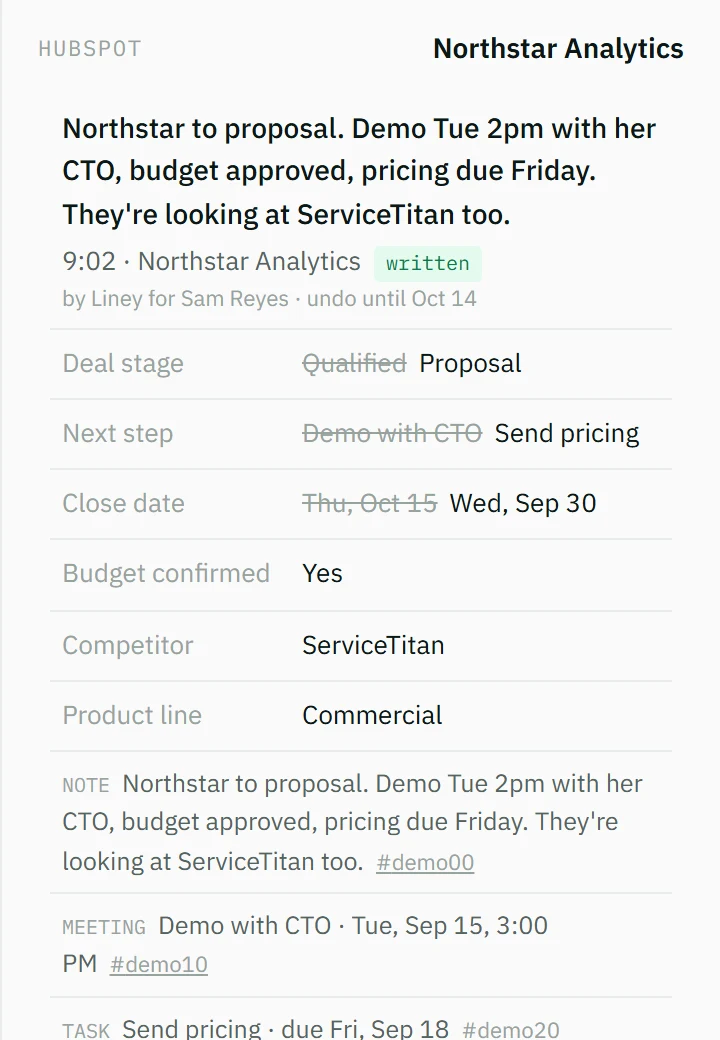
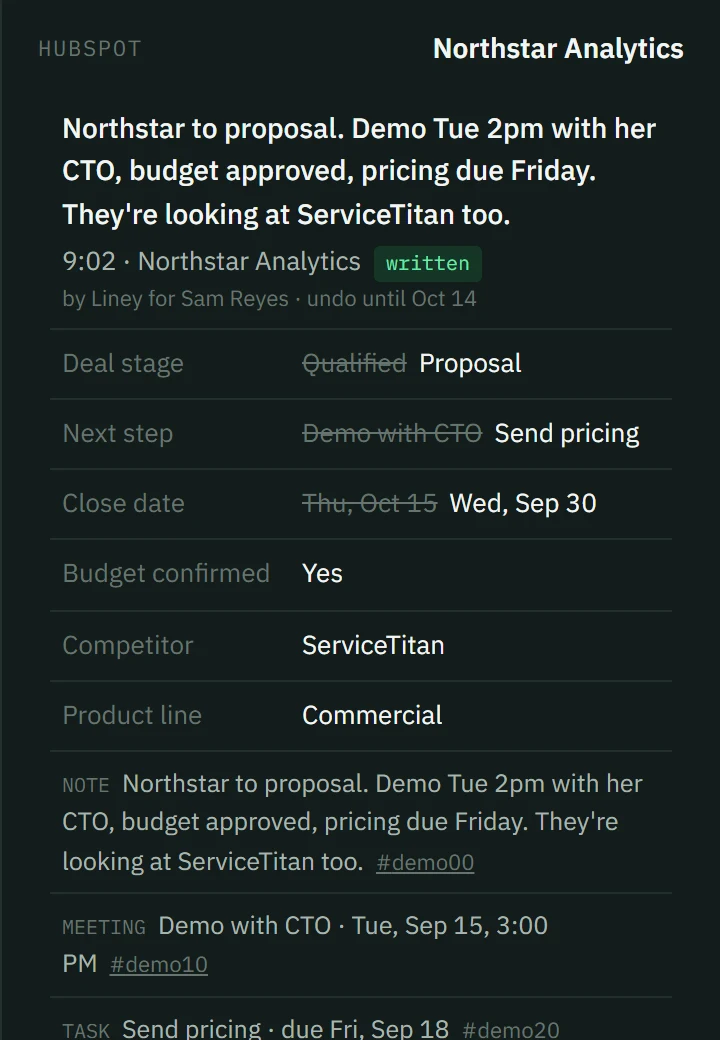
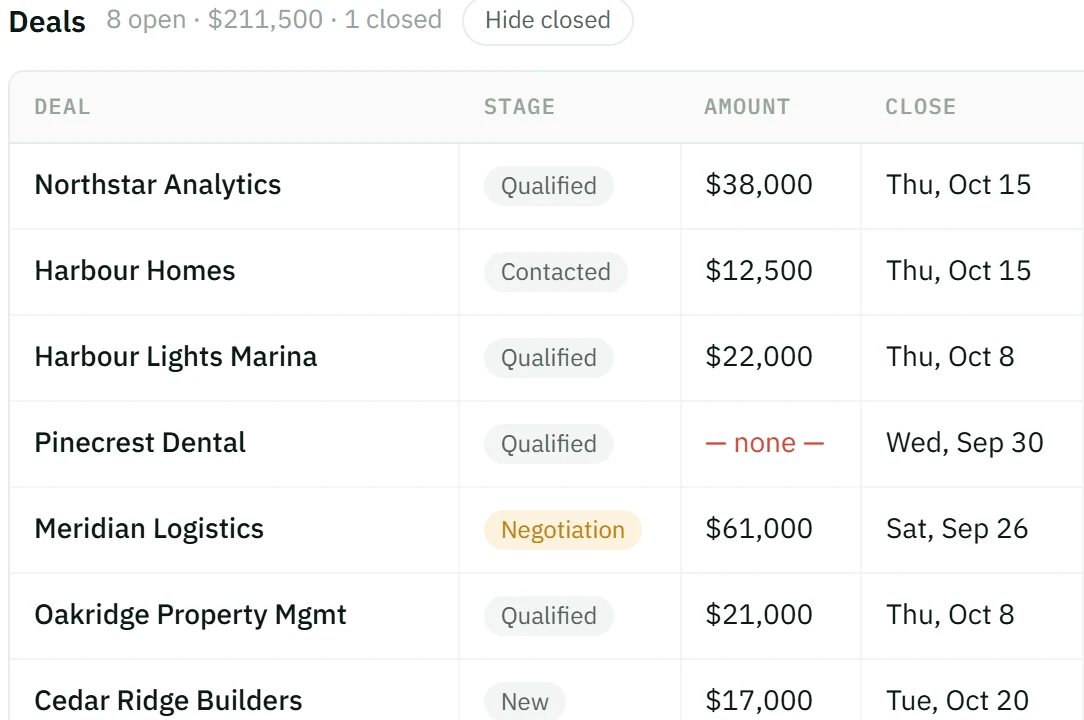
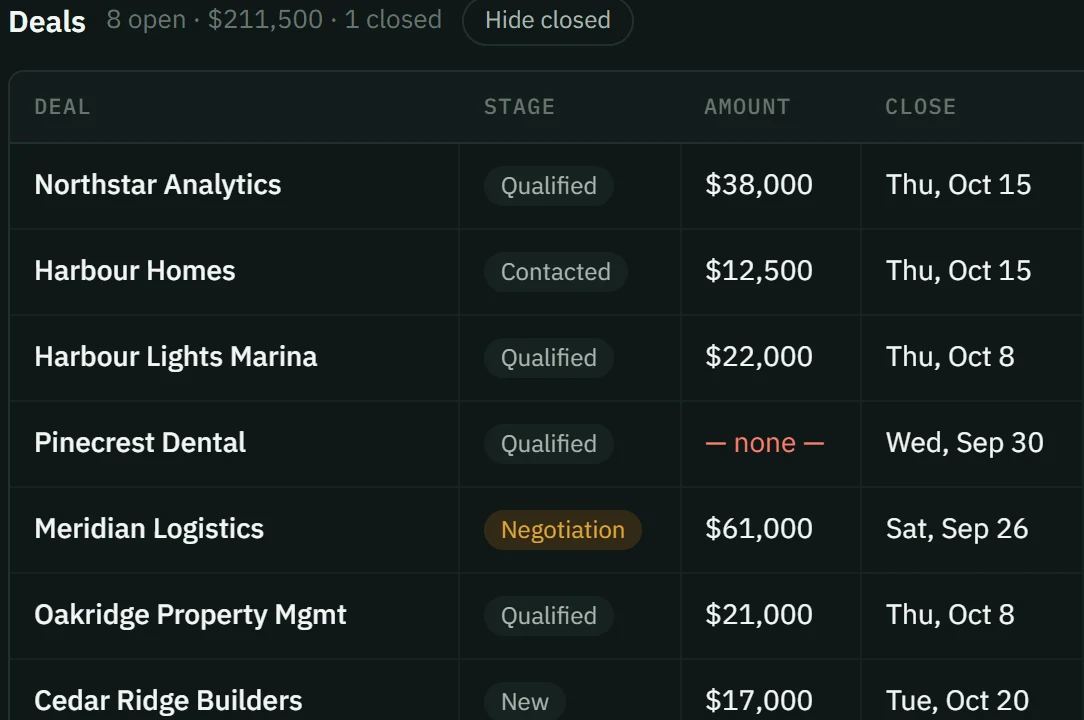
The sheet. Switch Log to Sheet at the top to see your deals as rows; Hide closed leaves only the open ones. Change a cell and it's saved to HubSpot when you finish it.
What happens automatically. While Liney is open it checks HubSpot for changes to your deals about every minute, and refreshes fields and stages every hour. Once a day it refreshes the deals of everyone connected. It only writes lines you approved: if HubSpot was busy or down when you pressed Update HubSpot, Liney tries that line again for a few minutes while it's open, then keeps it in the log for you to retry.
Disconnect
- In Liney, open Settings.
- Under HubSpot connection, choose Disconnect.
What disconnecting does: Liney deletes its HubSpot tokens and stops reading or writing HubSpot for you. Everything already written stays on your HubSpot records. Your lines and Liney's copy of your deals stay in Liney, so you can reconnect later and pick up where you left off. On the Team plan, disconnecting frees your seat.
Delete your Liney data
In Settings → Your data, choose Delete my data and confirm. If you're the only team admin and others still use Liney, make someone else an admin in Team → Manage people first. Liney removes your lines, its copy of your deals, contacts and companies, your ratings, your field picks and pins, your HubSpot tokens and your login. HubSpot itself is untouched. Fields and learned rules shared by your team stay for the others. The Privacy Policy lists everything that's removed and what is kept.
Uninstall from HubSpot
- In HubSpot, click the settings icon, then go to Integrations → Connected Apps.
- Find Liney, open Actions and choose Uninstall, then confirm.
HubSpot's own steps are in this HubSpot Knowledge Base article.
What uninstalling does: HubSpot revokes Liney's access for the account, so Liney can no longer read or write it, and anyone still signed in to Liney is asked to reconnect. What Liney already wrote stays on your HubSpot records. Liney's own copy of your lines and deals stays until each person uses Delete my data, or until you email hello@liney.ai to delete your whole team's data.
Help
Something not working? See Support or email hello@liney.ai.