Keep HubSpot up to date after every call
One update after a call is small. Twenty a day is why they get skipped.
Why deals fall behind
After a good call, HubSpot needs a handful of things: the stage, the amount, the close date, the next step, a logged call, a note and a follow-up task. That is several screens per call. So reps save it for Friday, and by Friday the details are gone.
The fix isn't another reminder. It's making the update take less time than the reminder does.
In HubSpot itself
- Log the call, note or meeting from the deal record, and create the follow-up task in the same place, while you're still on the call page.
- Change the stage, amount and close date from the deal's sidebar rather than opening every property.
- Keep the list of fields reps are expected to touch short. Every extra field is a reason to put the update off.
With Liney: one line
Type what happened, the way you'd tell a colleague:
“Called Dana at Acme, proposal by Friday, move to Contract Sent, 42k.”
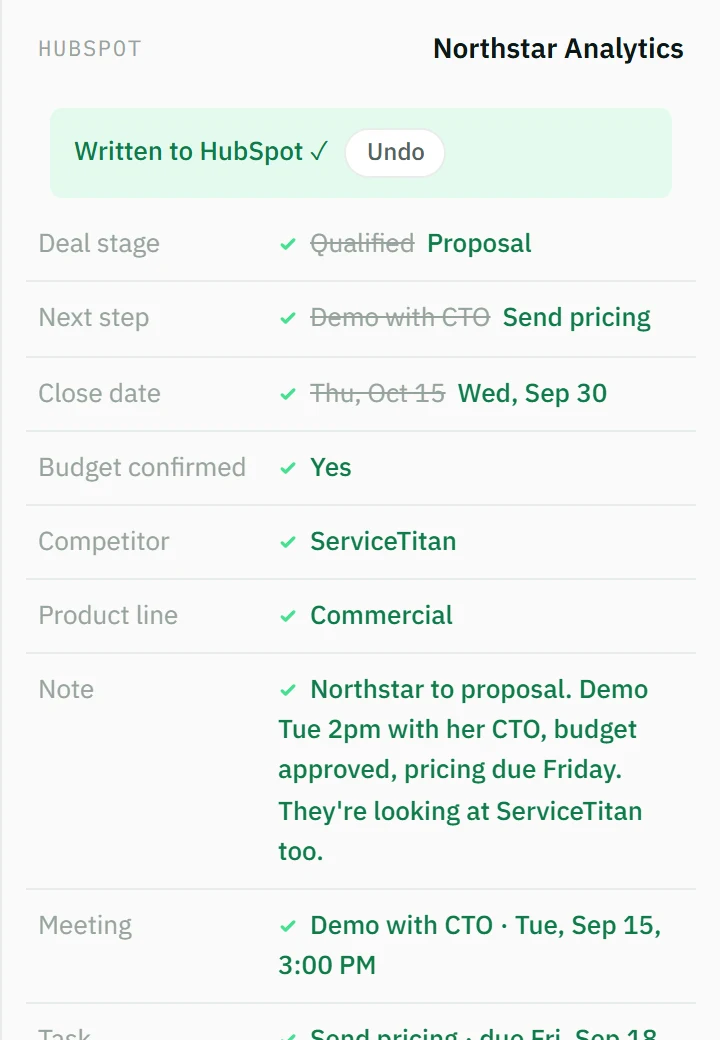
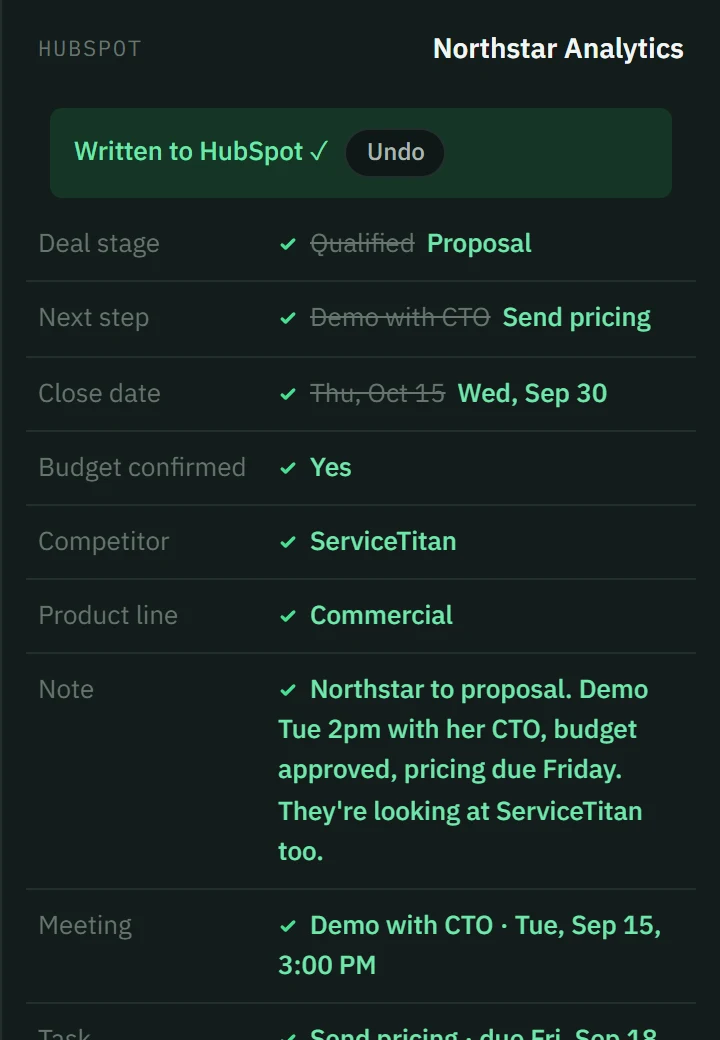
Press Enter. Liney finds the deal and shows everything it will write:
- the fields that change, each with its new value (click any value to change it);
- the note, kept word for word;
- a logged call or a meeting that already happened, or a task with its due date, when the line describes one. A meeting still ahead becomes a task, due today, to send the invite: Liney doesn't touch calendars;
- your open task on the deal marked done, when the line says you did it (“sent Northstar the pricing” closes “Send pricing”). If more than one task fits, Liney asks which;
- any required field that's still empty, marked “Needs your input”.
Check it and press Update HubSpot. Nothing reaches HubSpot before that.
When Liney isn't sure, it asks
- Which deal? If a few deals match, it shows them and you pick one. You can search every open deal on your HubSpot account, not just yours.
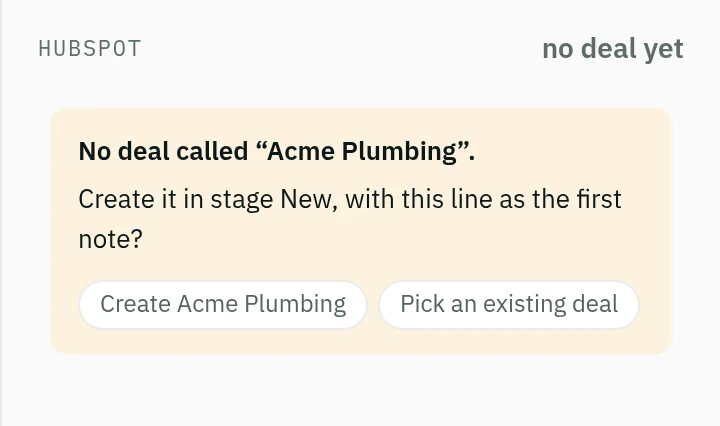
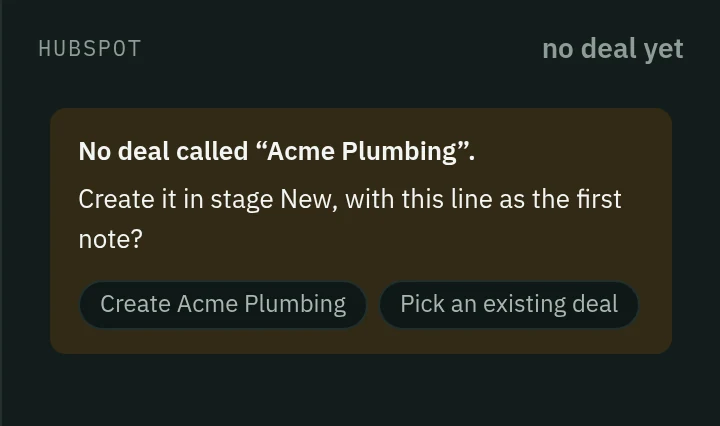
- A deal that doesn't exist yet. “Acme Plumbing wants a quote” with no matching deal offers to create it, with the line as its first note. Turn this off in Settings with Create deals from a line.
- A closed deal. You choose: add a note to the closed deal or start a new deal. If the line gives the deal a new stage, you can also reopen it.
- The same line twice. If you write the same words about the same deal within two minutes, Liney checks before logging it again.
New people, and changes to contacts and companies
“Talked with Pat Lee, pat@northwind.com, wants a demo next week.” If HubSpot doesn't have Pat, Liney offers to create the contact with the name, email and phone from the line, and the line as the first note. Tick Also make a deal to start a deal at the same time.
A line can also update people and companies HubSpot already has: “Dana's new email is dana@acme.com”, “John is VP of Sales now”, a company's new address or phone. If two contacts share a name, Liney asks which one you mean.
Liney also links what the line connects. “Met Carla Mendes from Vireo Solar” puts Carla at Vireo Solar, creating the company if HubSpot doesn't have it. Someone new on a deal is linked to the deal's company. “Ben will pay by wire” adds Ben to the deal, “Tom now works for Oakhurst Farms” makes Oakhurst his main company, and a new deal goes on the company it's for. Every link shows before you update, and you can drop any of them. When Liney isn't sure, it asks.
A whole day at once
Behind on logging? Paste your notes in one go.
- Put each deal on its own line. Bullets and numbers are fine; Liney strips them.
- Paste into the box. Liney loads the first line and shows “N more lines waiting”.
- Check the fields and press Update HubSpot. The next line loads by itself. Skip ahead or clear the rest at any time.
One long paragraph about several calls works too: Liney splits it into separate lines first, up to 20,000 characters at a time. Notes already on separate lines can be up to 2,000 characters each.
If a single line mentions several deals, Liney logs one deal at a time so each write can be undone on its own. Pick where to start, and the others wait in line with the same words.
From your phone, right after the meeting
- Open liney.ai in your phone's browser and connect HubSpot.
- In the browser menu, choose Install app (Chrome) or Share, then Add to Home Screen (Safari). Liney then opens like an app.
- Type the line in the car park, not at the end of the day.
Reading a new line needs a connection. If you lose signal after Liney has read the line, press Update HubSpot anyway: it goes through when you're back online with Liney open.
Quick fixes: the sheet
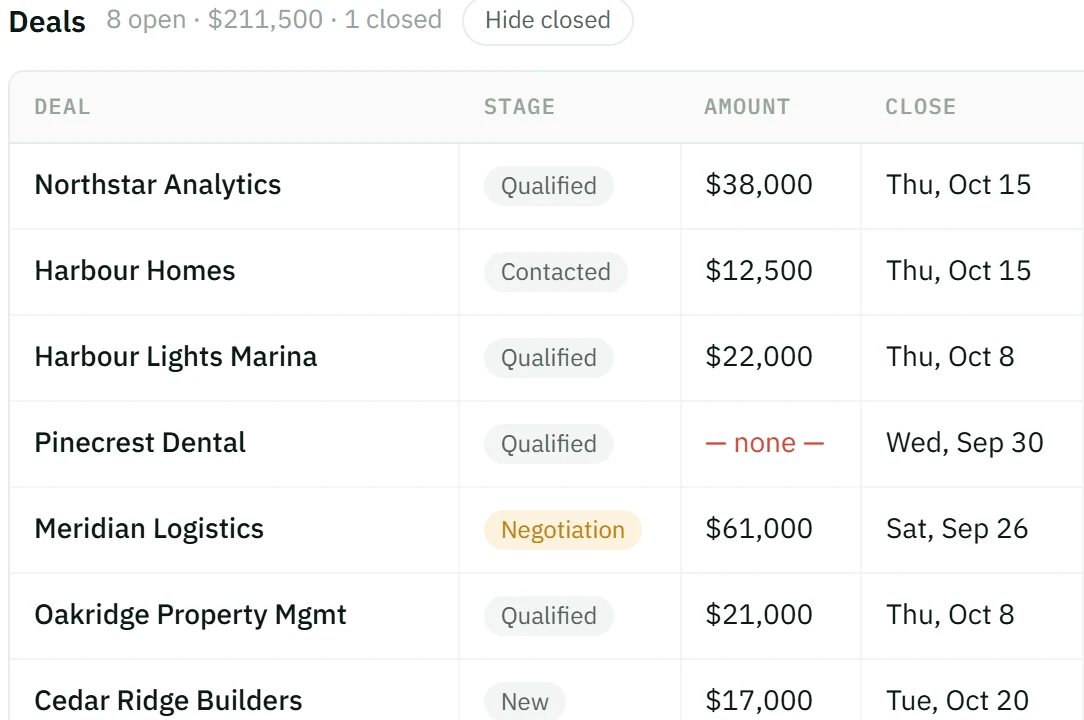
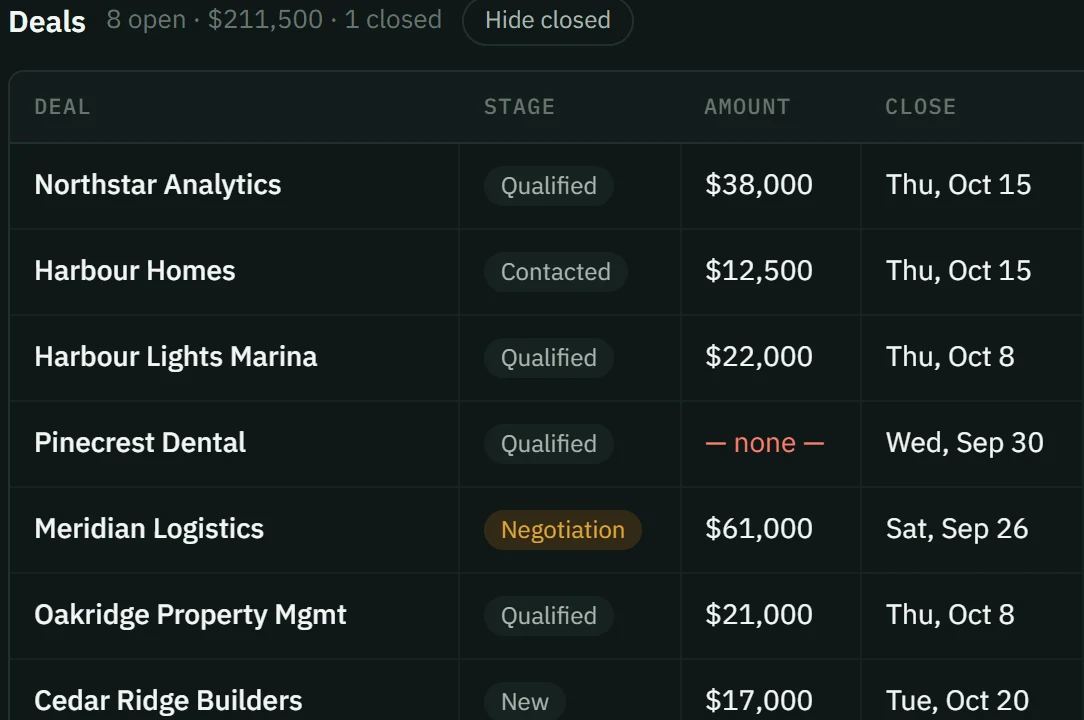
For a one-field change there's no need for a line. Switch Log to Sheet at the top: your deals as rows. Click a cell, change it, and it's saved to HubSpot. If someone changed the same cell in the meantime, Liney asks whether to write yours or keep theirs.
Make Update HubSpot one click
By default Liney asks “Update HubSpot?” after you press Update HubSpot. Once you trust it, open Settings and turn off Ask before updating. You still press Update HubSpot on every line, and every line can still be undone for 30 days (see Undo a HubSpot update you got wrong).
Ready for your 1:1
On a computer, choose Copy this week above your log. You get the last seven days of lines as plain text, grouped by day with the deal on each line, to paste into a pipeline review. Hover it for Copy today and Copy this month.